


|
STACK MCP

STACK Connector for AI Assistants

Connect your AI assistant to STACK and work with your construction takeoffs and estimates just by asking in plain language, with no code and nothing to install.

The STACK Connector links an AI assistant, such as Claude or ChatGPT, to your STACK account. Once it’s connected, you can ask your assistant to find, review, create, and update work in STACK on your behalf, and it acts using your own STACK access.

It’s made for the people who use STACK every day, estimators, preconstruction teams, and the IT administrators who support them, not for developers. There’s nothing to build: you add STACK in your assistant’s connector settings, sign in to STACK once, and choose what the assistant is allowed to do.

The connector is built on the open Model Context Protocol (MCP) — the standard for connecting AI assistants to the tools and data people already use. Because it follows that standard, the same STACK connection works across any MCP-compatible assistant.

/
REQUIREMENTS

Before you connect, you’ll need:

A STACK Account

Just sign in with your normal STACK sign-in during setup. You don’t need developer credentials, and there’s nothing to install.

Your Company is Enabled

The connector is turned on per company. If your company isn’t enabled yet, your STACK administrator or STACK support can arrange it.

Where and How to Connect?

STACK offers one connection that works across MCP-compatible AI assistants, including:

How to Connect:

  1. Open STACK’s listing in Anthropic’s connector directory and choose to add it. You can also reach the same listing from Claude’s own connector settings by browsing the directory for STACK. If the directory isn’t available to you, choose ‘Add custom connector’ in those settings instead and enter the connection URL: https://mcp.stackct.com/mcp
  2. Claude sends you to STACK to sign in.
  3. Review the STACK approval screen, choose which capabilities to allow, and confirm.

Claude is now connected to STACK and ready to use.

How to Connect:

  1. Open STACK’s listing in ChatGPT’s plugin directory and choose ‘Install plugin’.
  2. ChatGPT sends you to STACK to sign in.
  3. Review the STACK approval screen, choose which capabilities to allow, and confirm.

ChatGPT is now connected to STACK and ready to use.

How to Connect:

Any assistant that supports custom MCP connectors can connect to STACK.

Add a new custom connector in that assistant using the connection URL: https://mcp.stackct.com/mcp

Then complete the STACK sign-in and approval when prompted.

How to Connect:

  1. Open STACK’s listing in Anthropic’s connector directory and choose to add it. You can also reach the same listing from Claude’s own connector settings by browsing the directory for STACK. If the directory isn’t available to you, choose ‘Add custom connector’ in those settings instead and enter the connection URL: https://mcp.stackct.com/mcp
  2. Claude sends you to STACK to sign in.
  3. Review the STACK approval screen, choose which capabilities to allow, and confirm.

Claude is now connected to STACK and ready to use.

How to Connect:

  1. Open STACK’s listing in ChatGPT’s plugin directory and choose ‘Install plugin’.
  2. ChatGPT sends you to STACK to sign in.
  3. Review the STACK approval screen, choose which capabilities to allow, and confirm.

ChatGPT is now connected to STACK and ready to use.

How to Connect:

Any assistant that supports custom MCP connectors can connect to STACK.

Add a new custom connector in that assistant using the connection URL: https://mcp.stackct.com/mcp

Then complete the STACK sign-in and approval when prompted.

The exact menu names vary a little between assistants and change over time, but the flow is always the same: add STACK in your assistant’s connector settings, sign in to STACK, and approve the access you want to grant. You sign in on STACK’s own secure page — your assistant never sees your STACK sign-in credentials. Behind the scenes this uses standard OAuth 2.0 — your assistant is granted a limited, revocable access token, never your password.

Depending on your organization’s settings, an administrator may need to approve the STACK connector before you can add it.

Example Prompts

Once connected, you work with STACK just by describing what you want in plain language — your assistant figures out the steps. Here are a few examples to show the range. They’re illustrations, not a complete list, and you don’t have to word things exactly this way:

“Which projects are assigned to me right now?”

“What do I have saved in my takeoff library for exterior walls?”

“Review this estimate and flag anything that looks off before I send it to the client.”

“Turn this invitation-to-bid email into a new STACK project.”

“Move the bid date on the Maple Street Apartments job to next Friday.”

“Add our standard masonry wall takeoffs from the company library to this project.”

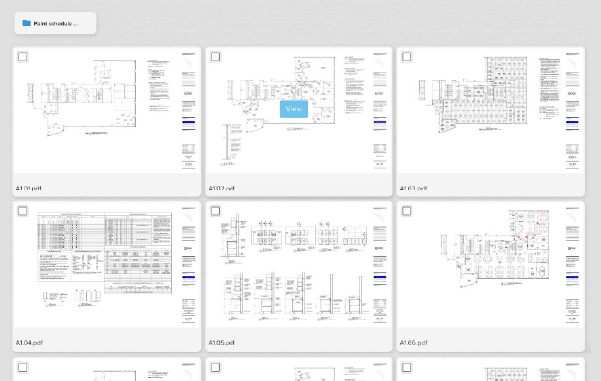
TIFF PDF

Before making any change, your assistant shows you what it’s about to do and waits for your approval — you stay in control of anything that creates, updates, or imports work in STACK.

What Can it Access?

Your assistant can help with two broad kinds of work in STACK:

Find & Review Existing Work

Searching for projects and takeoffs, opening and reviewing estimates, and looking things up in your takeoff libraries.

Create, Update & Import

Starting new projects, updating project details, making bulk edits to takeoff work, and importing from your libraries and company lists.

You decide what to allow. 

When you connect, STACK shows you a STACK-branded approval screen listing exactly which of these capabilities your assistant is requesting. You grant them yourself, and you can allow read-only work (finding and reviewing) without allowing changes (creating, updating, and importing).

Your existing permissions still apply. 

The connector never reaches anything your STACK account couldn’t already reach. STACK enforces the same company ownership and user permissions it always has, so your assistant only sees and changes what you could see and change yourself.

How is this Different From Other STACK Products?

It is NOT the STACK API

STACK also offers a REST API for developers building their own software integrations. That's a separate product with a different sign-in model (developer credentials). The connector is for everyday STACK users connecting a personal AI assistant — no development work involved.

It is NOT STACK Assist

STACK Assist is AI built directly into the STACK product. The connector works in the other direction: it brings your own assistant, Claude, ChatGPT, or another MCP host, to your STACK data, so you can work with STACK from wherever you already chat with your assistant.

Troubleshooting

Make sure the STACK connector is added and turned on in your assistant’s connector settings, and that you finished the STACK sign-in and approval step. Some assistants need you to start a new conversation after adding a connector.

The connection isn’t complete until you sign in to STACK and confirm the approval screen. If it didn’t appear, check for a blocked pop-up, then remove the connector and add it again.

The connector is turned on per company. Ask your STACK administrator or STACK support to enable it for your company, then connect again.

You may have allowed read-only access. Reconnect and approve the creating-and-updating capabilities on the STACK approval screen.

Reconnect STACK from your assistant’s connector settings and complete the STACK sign-in again.

Need help, or have a security concern about the connector? 

Contact STACK support and mention that you’re using the STACK connector for AI assistants.

Shopping Basket

Which solution are you looking for?

Takeoff & Estimate
Calculate everything you need anytime, anywhere.
Build & Operate
Seamlessly link your data from the office to the field.

Need a more custom solution?  Talk to us

STACK Training Videos

Select which training library you would like to access: